
Rendering FHIR resources
The IG editor lets you embed Simplifier content (resource trees, tables, raw resources, and more) using placeholder widgets. Type a widget in the editor, then refresh the preview with Ctrl + Enter or the Refresh button to make it visible.
Reference a resource by its canonical URL (recommended, as the link keeps working when the guide is exported or duplicated) or by its filepath. The rendered content comes from the guide’s scope, which you set in the IG settings.
Finding resources (Intellisense)
Simplifier has an Intellisense that helps you find the resource you want to render. It is triggered automatically after you type a command, for example {{tree:. There are three modes:
Canonical (default): all canonical URLs in your guide’s scope.
Files: all files in your scope, together with your package dependencies.
Global: all public projects and packages on Simplifier.
Toggle between modes with the buttons at the bottom right of the editor, by pressing F1 and choosing ‘Change intellisense mode’, or with Ctrl + I. The mode only changes how Intellisense suggests; every valid render syntax works regardless of the selected mode.
Widgets
The following widgets embed Simplifier content. Most take a canonical URL (or a resource id for examples):
{{tree:canonicalUrl}}renders a StructureDefinition as a tree, as seen on the resource overview tab.{{table:canonicalUrl}}renders the resource table.{{dict:canonicalUrl}}renders the dictionary: a table with the extended details of every element of a profile.{{json:canonicalUrl}}/{{xml:canonicalUrl}}render the resource as JSON or XML (the narrative is removed before rendering).{{narrative:canonicalUrl}}renders the resource’s narrative. If the narrative is empty, the widget renders nothing.{{metadata:canonicalUrl}}renders a consistent table of metadata fields (see Metadata).{{link:canonicalUrl}}links to the resource page on Simplifier. Add a title with{{link:canonicalUrl, title:'Base Patient'}}.{{namingsystems:ProjectName}}lists all naming systems of a project in a table.{{render:canonicalUrl}}renders and parses any file type;{{source:canonicalUrl}}renders any file unparsed (preserving indentation and line breaks).{{index:root}}/{{index:current}}add an index (see Index).
Tree and render properties
The tree widget accepts properties that control how it renders:
Form: show the
diff,snap, orhybridform of the resource.{{tree:http://hl7.org/fhir/StructureDefinition/Patient, diff}} {{tree:http://hl7.org/fhir/StructureDefinition/Patient, snap}} {{tree:http://hl7.org/fhir/StructureDefinition/Patient, hybrid}}
buttons: showdiff,snap, andhybridbuttons so the reader can switch between them.{{tree:http://hl7.org/fhir/StructureDefinition/Patient, buttons}}
expand: fully expand the tree, or give a number for the level of expansion.{{tree:http://hl7.org/fhir/StructureDefinition/Patient, expand}} {{tree:http://hl7.org/fhir/StructureDefinition/Patient, expand: 2}}
lang: switch the rendering to the given language, if available.{{tree:http://hl7.be/fhir/be/StructureDefinition/Patient, lang: fr-BE}}
Metadata
The metadata widget renders a table of metadata fields for the referenced resource:
{{metadata:http://acme.org/StructureDefinition/profile-patient, render-metadata-title}}
The supported fields depend on the resource type:
Conformance resources:
url,version,publisher,status,experimental,description,purpose,useContext,contactMessageDefinition:
title,event,categoryStructureDefinition:
context(for extensions)
If no fields are specified, all non-empty fields are rendered in the FHIR-defined order. If fields are specified ({{metadata:canonicalUrl, url, version, publisher}}), only those are rendered, in the order listed. The optional render-metadata-title flag also displays a title with the resource type and name.
Index
The index widget renders a navigable index:
{{index:root}}indexes the entire IG.{{index:current}}indexes the currently selected element.{{index:Home}}(any page URL key) indexes that specific page.
Tabs
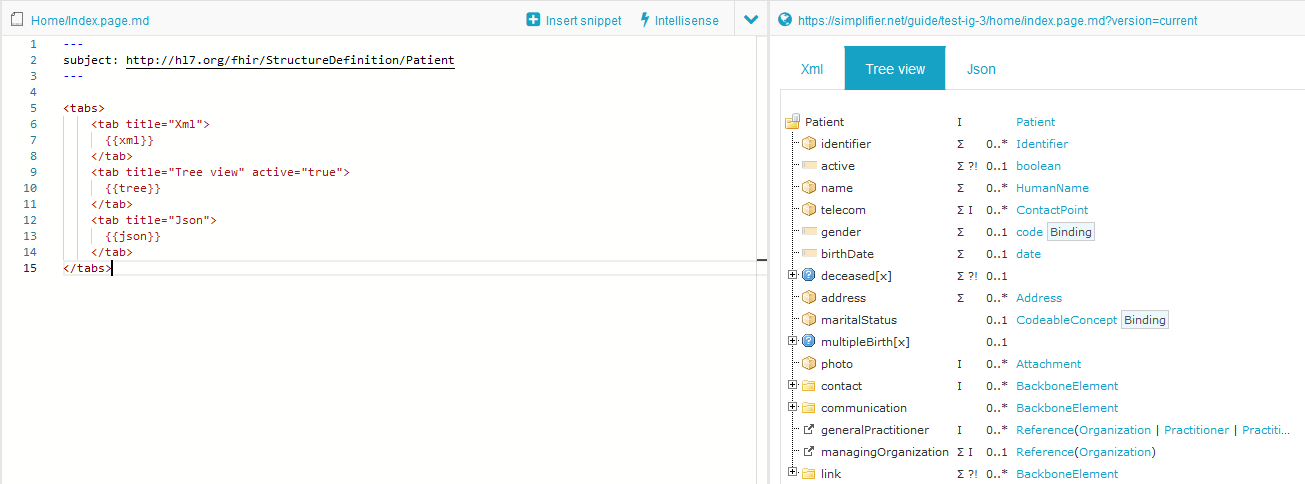
You can group widgets into tabs on a guide page:
<tabs>
    <tab title="Overview">
      {{tree:http://hl7.org/fhir/StructureDefinition/Patient}}
    </tab>
    <tab title="Xml" active="true">
      {{xml:http://hl7.org/fhir/StructureDefinition/Patient}}
    </tab>
</tabs>
By default the first tab is active; use active="true" to activate another. Tabs can be customized further on the Team plan and up.
FQL tables
With FQL you can create dynamic tables that retrieve information from the resources in scope. For the full language, see our FQL documentation.
<fql>
    from
        StructureDefinition
    select
        name, type, kind, url
    order by
        name
</fql>
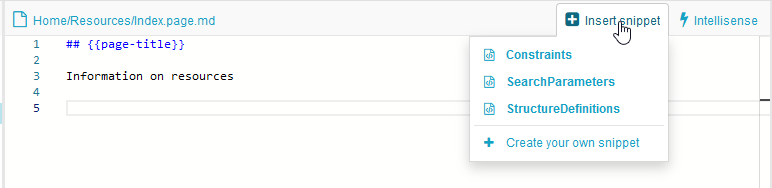
You can save FQL statements for reuse across pages and projects: the IG editor can save custom snippets to a .snippet.md file, usable on every page in that project and shareable across projects.
You can also keep a query in a .fql file and render it with {{render:my-query.fql, output:inline}}.