
Getting Started
The following pages will provide you with the first stepping stones when starting to work with Firely server. You can install Firely Server locally in a matter of minutes for testing purposes.

Basic installation
Note
Firely Server can run on all operation systems that support .NET. If your OS does not support .NET or if you want to use Docker, please look at the Using Firely Server on Docker section.
If you want to start using the standard Firely Server in your local environment, follow the steps on this page to install
and run the server.
Sign up for an evaluation license. You will receive an email with the license file as well as a link to the download page were you can download the Firely Server binaries with the version of your choosing.
Extract the downloaded files to a location on your system, for example:
C:FirelyServer. We will call this the working directory.Put the license file in the working directory.
In the working directory create a new JSON file and name it
appsettings.json. You will use this file for settings that you want to differ from the defaults inappsettings.default.json. For more background on how the settings are processed, see Adjusting Firely Server settingsOpen
appsettings.json, copy theLicenseFilesetting fromappsettings.default.jsonto it and change this property to the name of your license file. For example:{ "License": { "LicenseFile": "firelyserver-trial-license.json" } }
You can further configure Firely Server by adjusting the
appsettings.json. The section Setting up Firely Server explains possible configuration settings.
Running Firely Server
Important
The next step assumes you have a .NET Core environment installed. If not, please download and install ASP.NET Core Runtime 8.x.xx Hosting Bundle before you continue. Choose the latest security patch to mitigate security issues in previous versions.
When you have completed your configuration changes, start the server. Open a command prompt or Powershell, navigate to your working directory and execute:
> dotnet .\Firely.Server.dll
Access Firely Server
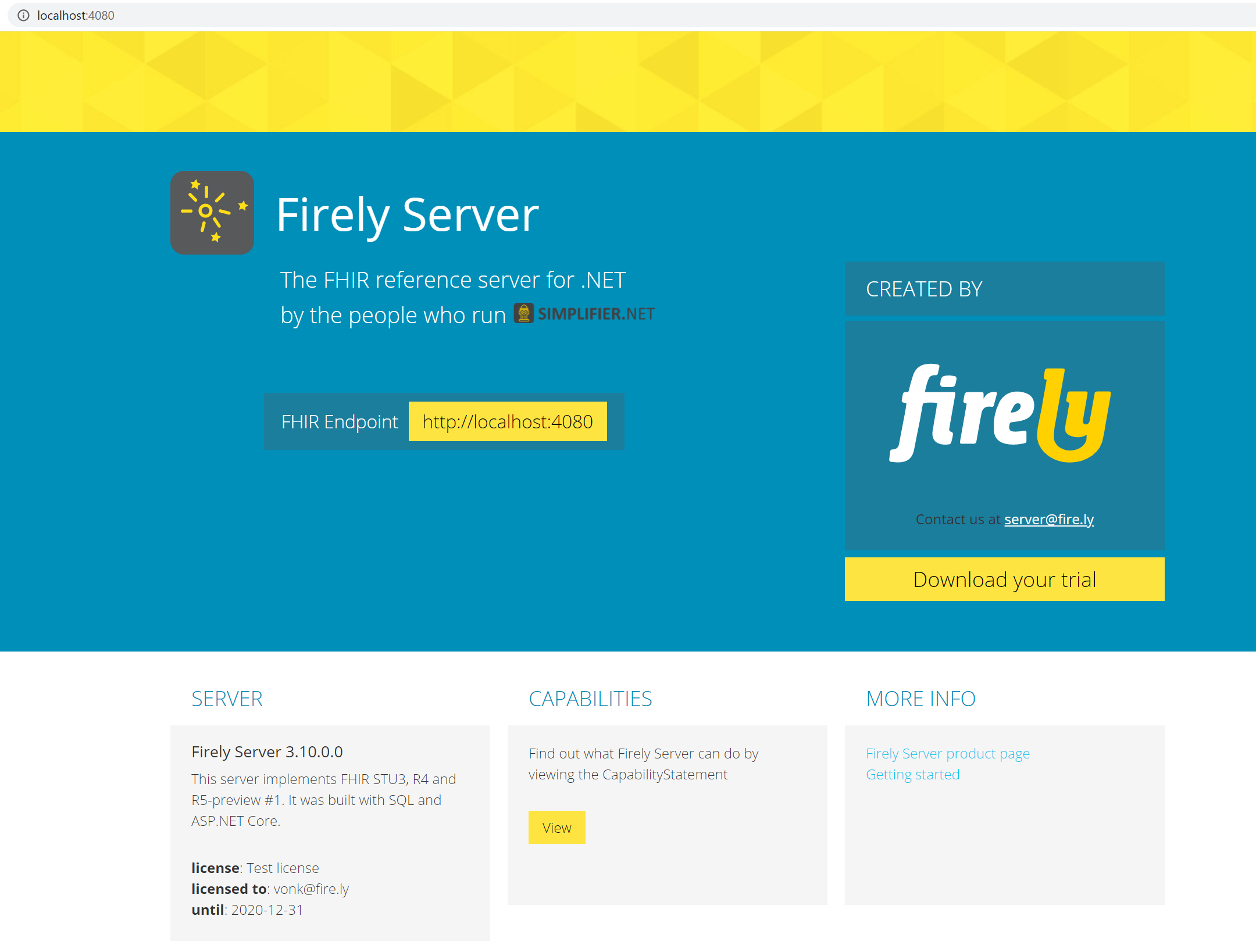
Firely Server will by default run on port 4080 of the system. Check if Firely Server is running correctly, open a browser and navigate to localhost:4080.
You will see the following homepage:
The next step is to explore Firely Server functionality, see Features - Overview for more details.