
Zero-downtime Migration
Firely Server v6 introduces an enhanced MongoDB database migration process. In contrast to the previous migration method that required system downtime, this new approach enables zero-downtime migration. This allows for continuous operation of your existing Firely Server instance while the data migration to the new schema proceeds.
Warning
Please note that any snapshot produced by the bulk data export functionality will not be available after the migration. Bulk data export data is excluded from the migration process.
Note
The FSI migration tool only supports migrations from Firely Server v5.0.0 and later to Firely Server v6.0.0 and later. If you are still using Firely Server v4, please upgrade to a v5 version before migrating or contact our support team for assistance.
Architecture Overview
The following diagram illustrates the architecture and components involved in the migration process:
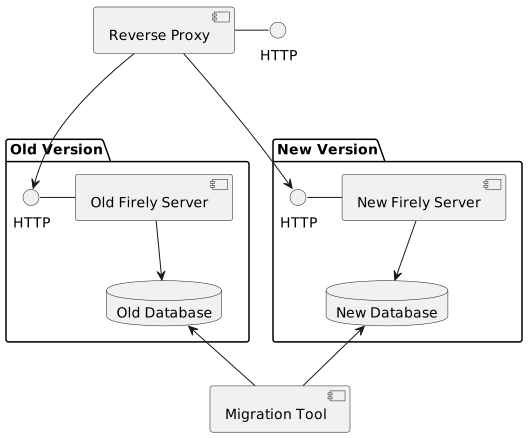
The architecture consists of:
An existing database containing the source data
The current Firely Server instance maintaining normal operations during migration
A new target database instance initialized empty
A migration tool operating asynchronously to transform and transfer data
A new Firely Server instance configured for the target database
A reverse proxy managing request routing between instances
Note
During the migration period, both database instances operate concurrently. However, the migration is one-way only, changes from the new instance are not synced back to the old instance.
Prerequisites
Before starting the migration, ensure you have:
The latest version of Firely Server Ingest (FSI) tool installed
Sufficient disk space for both databases during migration
License file with the token
http://fire.ly/vonk/plugins/bulk-data-import/migrationAccess credentials for both source and target MongoDB instances
MongoDB Shell (mongosh) installed for comparing data and potentially for sharding configuration
Migration of Admin Database
Warning
This zero-downtime migration process applies only to the main database, configured as described in Using MongoDB.
If you use MongoDB as the admin database, you will need to let the new FS version instance initialize its new vonkadmin database from scratch. You can do that by specifying a different connection string for the admin database than your previous installation. If you previously imported custom conformance resources, make sure to include them in your new installation.
This can be done as described in Import of Conformance Resources or by manually creating/updating the resources via the new FS installation’s /administration endpoints.
Make sure to re-create your custom AccessPolicies and/or Subscriptions if you use them.
Migration of Main Database
Determine the target database deployment location and make a note of the connection string for reference in the next steps.
For implementations requiring sharding, refer to MongoDB Sharding to set up sharding for the target database.
Execute the FSI migration process:
Initialize the migration by executing the following command:
BashRECOVERY_JOURNAL_DIRECTORY=./journal # A directory where the progress will be stored in case of a crash. FSI will quickly catch up to the place where an error occurred. FHIR_VERSION=R4 LICENSE_FILE="<path to your license file>" RUNNING_MODE=Continuous # Or AdHoc. If AdHoc mode is used, FSI will terminate when all the items from the old DB have been processed. SOURCE_CONNECTION_STRING="<old db connection string including the database name>" SOURCE_COLLECTION_NAME=vonkentries CONNECTION_STRING="<new DB connection string including the database name>" COLLECTION_NAME=vonkentries fsi \ --fhir-version $FHIR_VERSION \ --provisionTargetDatabase true \ --useRecoveryJournal $RECOVERY_JOURNAL_DIRECTORY \ --sourceType MongoDb \ --srcMongoCollection $SOURCE_COLLECTION_NAME \ --srcMongoConnectionString $SOURCE_CONNECTION_STRING \ --srcMongoRunningMode $RUNNING_MODE \ --update-existing-resources OnlyIfNewer \ --dbType MongoDb \ --mongoConnectionstring $CONNECTION_STRING \ --mongoCollection $COLLECTION_NAME \ --license $LICENSE_FILE
PowerShell$RECOVERY_JOURNAL_DIRECTORY = "./journal" # A directory where the progress will be stored in case of a crash. FSI will quickly catch up to the place where an error occurred. $FHIR_VERSION = "R4" $LICENSE_FILE = "<path to your license file>" $RUNNING_MODE = "Continuous" # Or AdHoc. If AdHoc mode is used, FSI will terminate when all the items from the old DB have been processed. $SOURCE_CONNECTION_STRING = "<old db connection string including the database name>" $SOURCE_COLLECTION_NAME = "vonkentries" $CONNECTION_STRING = "<new DB connection string including the database name>" $COLLECTION_NAME = "vonkentries" fsi ` --fhir-version $FHIR_VERSION ` --provisionTargetDatabase true ` --useRecoveryJournal $RECOVERY_JOURNAL_DIRECTORY ` --sourceType MongoDb ` --srcMongoCollection $SOURCE_COLLECTION_NAME ` --srcMongoConnectionString $SOURCE_CONNECTION_STRING ` --srcMongoRunningMode $RUNNING_MODE ` --update-existing-resources OnlyIfNewer ` --dbType MongoDb ` --mongoConnectionstring $CONNECTION_STRING ` --mongoCollection $COLLECTION_NAME ` --license $LICENSE_FILE
Migration completion is indicated by the following message:
No new items found in the database. Waiting for 00:00:05 before retrying...Provision an instance of the new version of Firely Server
Verify that the migration was successful by inspecting the data in the target database, see the verification steps below
Update the reverse proxy configuration to direct traffic to the new Firely Server instance
Decommission the instance(s) of the old version of Firely Server
Terminate the FSI migration tool
Verification Steps
After migration completion:
Compare record counts between source and target databases:
BashSOURCE_CONNECTION_STRING="<old db connection string including the database name>" CONNECTION_STRING="<new DB connection string including the database name>" # For source database mongosh $SOURCE_CONNECTION_STRING --eval "db.vonkentries.count()" # For target database mongosh $CONNECTION_STRING --eval "db.vonkentries.count()"
PowerShell$SOURCE_CONNECTION_STRING = "<old db connection string including the database name>" $CONNECTION_STRING = "<new DB connection string including the database name>" # For source database mongosh $SOURCE_CONNECTION_STRING --eval "db.vonkentries.count()" # For target database mongosh $CONNECTION_STRING --eval "db.vonkentries.count()"
Verify data integrity by sampling records
Try a few Search requests on the new Firely Server instance
Rollback Plan
In case of migration issues:
Keep the original database and Firely Server instance running
Stop the FSI migration process
Review logs and correct any issues before retrying
If you choose to remove data from the target database and start from scratch, make sure to also remove the journal directory
Performance Optimization
Network Considerations - Use the same data center for the source and target databases and the machine that runs FSI to ensure high network throughput.